
Online Citizenship Test: What to Expect (Proctoring, Recording & Tips)
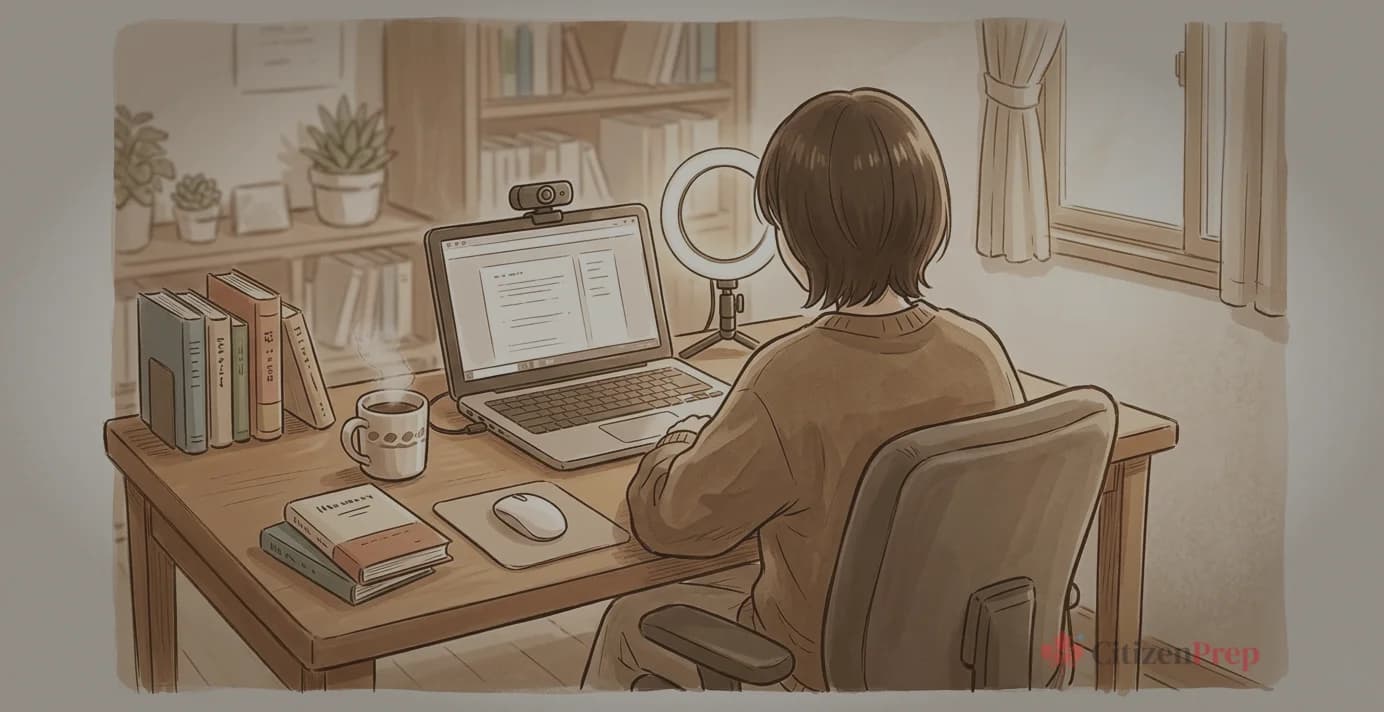
If you've just received your citizenship test invitation from IRCC, you're probably wondering: what exactly happens when I take the test online? Will someone be watching me? What if my internet cuts out?
These are completely normal questions — and this guide will walk you through every step so there are no surprises on test day.
The Canadian citizenship test is now a self-administered online test by default. There is no live proctor watching you in real time. According to IRCC's official guidance, your webcam is used to take random photos during the test to confirm your identity and ensure you're working alone — not continuous video. And the browser never requests microphone access, so no audio is recorded. Once you understand how the process works, you'll feel much more confident going in.
Before Test Day: What You Need
Before you can start the test, make sure you have the right equipment and environment ready.
Technical Requirements
| Requirement | Details |
|---|---|
| Device | Desktop computer, laptop, or tablet with a webcam |
| Browser | Chrome or Safari (latest version recommended) |
| Webcam | Built-in or external — must be working and enabled |
| Internet | Stable connection (wired is safer than Wi-Fi) |
| Room | Quiet, well-lit, private space |
What Is NOT Allowed
- Mobile phones — you cannot take the test on a phone
- Chrome on iPad — this specific combination is not supported
- Microsoft Surface Pro — these devices are not supported
- VPN connections — you must not be connected through a VPN
- Other browser tabs or windows — close everything else before starting
- Other devices nearby — no second screens, tablets, or phones visible
- Study materials — no notes, books, or reference materials in view
- Other people in the room — you must be alone
- Personal information visible in background — remove diplomas, certificates, or documents with your name
Step-by-Step: What Happens on Test Day
Here's exactly what the process looks like from start to finish.
Step 1: Log In to Your IRCC Account
Open your browser and go to the link provided in your test invitation email. Sign in to your IRCC online account. You'll see the option to start your citizenship test.
Step 2: Identity Verification
Before the test questions appear, you'll need to verify your identity. This involves two things:
- Take a photo of yourself — the system will use your webcam to capture a clear photo of your face
- Take a photo of your ID — you'll need to photograph an acceptable piece of identification
Acceptable ID includes:
- Expired or valid permanent resident card
- Valid driver's licence
- Valid provincial or territorial health card
Your photos must be clear and readable. If the photos are blurry or your face is not fully visible, the test may be considered invalid — and you could be asked to retake it.
Step 3: The Test Begins
Once your identity is verified, the 20 test questions appear. Here's what the test looks like:
- 20 questions — multiple choice or true/false format
- 45 minutes to complete (most people finish in 10-15 minutes)
- 15 correct answers (75%) needed to pass
- Questions are randomly selected from IRCC's bank of approximately 300–400 questions
- Each version of the test is weighted so that difficulty remains similar across attempts
You can move between questions and change your answers before submitting. Take your time — 45 minutes is generous.
Step 4: Webcam Monitoring During the Test
This is the part that makes most people nervous, so let's be clear about how it works.
Your webcam is used to take random photos during the test — not a continuous video recording. IRCC confirms these photos are used to:
- Confirm that you are the person taking the test (by comparing to your ID photo and application photos)
- Ensure you are working alone — no other person is visible
No audio is recorded. The browser never requests microphone access — you can verify this yourself by checking your browser's permission bar during the test. Your voice and background sounds are not captured.
There is no live proctor. No one is watching you in real time. IRCC reviews the photos after you submit the test.
What can trigger a flag:
- Another person visible in the frame
- Looking away from the screen frequently or for extended periods
- Visible study materials or notes
- Using a second device
- Opening other browser tabs or windows
- Poor photo quality (blurry face, bad lighting)
- Photos that don't match your ID
Step 5: Submit and See Your Temporary Score
When you finish all 20 questions and submit, you'll see a temporary score on your screen right away. This tells you how many questions you answered correctly out of 20.
This score is NOT your official result. It's provisional. Your result only becomes official after IRCC reviews your identity verification photos and proctoring footage. This review can take anywhere from a few days to several weeks.
If your temporary score is 15 or higher, you likely passed — but it's not confirmed until the review is complete.
If your temporary score is below 15, you did not pass this attempt. But you still have more attempts within your 30-day window. See our guide to the 2026 test rules and attempts for a complete breakdown of your options.
During the online citizenship test, what does IRCC use your webcam for?
How IRCC Reviews Your Test
After you submit, here's what happens behind the scenes.
Identity Verification Review
An IRCC officer reviews the photos you submitted during the identity verification step. They compare:
- Your self-portrait photo to the photo on your ID document
- Both of those to the photos in your citizenship application file
If the photos don't match or are unclear, IRCC may ask you to retake the test or attend an in-person or Microsoft Teams test instead.
Proctoring Footage Review
IRCC also reviews the random photos captured by your webcam during the test. They're looking for signs that the test wasn't taken fairly:
- Was someone else in the room?
- Were study materials visible?
- Were you looking at something off-screen frequently?
- Did the person in the photos match the person who verified their identity?
This review combines automated checks (software scanning for anomalies) and manual review by officers when needed.
What Happens If You're Flagged
If something looks off during the review, IRCC has several options:
| Issue | Likely Outcome |
|---|---|
| Blurry photos or poor lighting | Asked to retake the test |
| Identity photos don't match | Referred for in-person or Teams test |
| Someone else visible in room | Test invalidated; retake required |
| Evidence of cheating or outside help | Test invalidated; possible referral to hearing |
| Serious or deliberate dishonesty | Misrepresentation finding — application refused, possible 5-year ban from reapplying |
The good news: if you take the test honestly in a proper environment, you have nothing to worry about. The proctoring system is designed to catch cheating, not to penalize honest test takers who happen to glance sideways or have a pet walk into the room.
The 30-Day Window and 3 Attempts
When you receive your test invitation, you get a 30-day window to complete the test. Within that window, you have up to 3 attempts.
Key points:
- You choose when to take each attempt — IRCC does not schedule individual tests for you
- Each attempt gives you a new set of 20 questions randomly drawn from the question bank
- There is no waiting period between attempts — you could theoretically take all 3 on the same day (though we don't recommend it)
- If you pass on any attempt, you're done
- If you don't pass after 3 attempts, IRCC will usually invite you to a knowledge hearing
Our recommendation: Don't rush into your second or third attempt. Take a few days to study the areas where you struggled, then try again when you feel confident. You can use our daily concepts feature to strengthen your weak areas one topic at a time.
For a detailed look at how the 2026 test rules work, see our guide to the 2026 citizenship test changes.
8 Tips for a Smooth Test Experience
1. Choose the Right Room
Find a quiet, private room where you won't be interrupted. Lock the door if you can. Tell family members or roommates not to enter while you're testing.
2. Get the Lighting Right
Good lighting is essential — the system needs clear photos of your face. Sit facing a window or place a lamp in front of you. Avoid overhead-only lighting or backlighting from a window behind you.
3. Clear Your Background
Remove anything with personal information (diplomas, certificates, mail). A plain wall behind you is ideal. This is a proctoring requirement, not a suggestion.
4. Close Everything Else
Before starting, close all other browser tabs, applications, and programs. The test system may detect other open windows, which could flag your session.
5. Use a Wired Internet Connection
If possible, plug in an ethernet cable instead of relying on Wi-Fi. A dropped connection mid-test can cost you valuable time and stress.
6. Don't Rush
You have 45 minutes for 20 questions. Most people finish well within the time limit, but there is no bonus for finishing early. Read each question carefully, especially questions with "NOT" or "EXCEPT" in them.
7. Keep Your Eyes on the Screen
The webcam is taking random photos. If you're constantly looking off-screen, it may be flagged during review. It's fine to glance away briefly (everyone does), but try to keep your focus on the monitor.
8. Test Everything the Day Before
Open Chrome or Safari, test your webcam, check your internet speed, and make sure you can log in to your IRCC account. Finding out your webcam doesn't work 5 minutes before your test is the kind of stress you don't need.
What to Do If Technical Issues Happen
Technical problems during the test are stressful, but they don't mean you've lost your chance. Here's what to do.
During the Test
- Internet drops briefly: Try to reconnect quickly. If you get back within the 45-minute window, you may be able to continue.
- Webcam shows black or static: Try refreshing the page. If that doesn't work, close and reopen your browser. If the issue persists, it may affect your test validity.
- Browser freezes or crashes: Try reopening the test link. If you can't get back in, document what happened (time, error messages, what you saw).
- Blank screen or "browser not supported": Make sure you're using Chrome or Safari. Clear your cache, disable browser extensions, and try again.
After a Technical Issue
If a technical problem prevented you from completing the test or affected your experience:
- Email IRCC at the address provided in your test invitation, with a detailed explanation of what happened
- Document everything — screenshots, error messages, the exact time the issue occurred
- Request consideration — IRCC may allow the attempt to not count against your 3 tries, or offer you an in-person or Microsoft Teams test as an alternative
IRCC is generally understanding about genuine technical issues. The key is to report them promptly and with documentation.
Alternative Test Formats
The online test is the default, but alternatives exist for certain situations:
- In-person test at an IRCC office — available for those with technical difficulties, accessibility needs, or at an officer's discretion
- Microsoft Teams test — a video-supervised version for accommodations or when online self-administration isn't feasible
These alternative formats allow only one attempt per session (unlike the online format's 3 attempts within 30 days). If you fail an in-person or Teams test, you'd need to schedule a separate session to retake it.
To request an alternative format, contact IRCC through your online account or the IRCC web form.
Frequently Asked Questions
Is someone watching me live through the webcam during the test?
No. There is no live proctor. According to IRCC, your webcam takes random photos during the test — not a continuous recording — and IRCC reviews them afterward. Also worth knowing: no audio is recorded. The browser never requests microphone access, so your voice and surroundings are not captured.
What happens if my child or pet walks into the room during the test?
A brief, accidental interruption is unlikely to cause a problem. However, the proctoring photos might capture another person in the frame, which could be flagged for review. To be safe, make arrangements to be completely alone during the test.
Can I use the back button in my browser during the test?
No. IRCC specifically warns not to use your browser's back button during the test. Use only the navigation provided within the test interface itself.
What if I can't finish the test in 45 minutes?
If you can't return to the test within the 45-minute window (due to a technical issue or otherwise), email the address in your test invitation with a detailed explanation. IRCC may provide accommodations. If you simply need more time due to a disability or medical condition, you can request accommodations before your test.
Do I have to start the test immediately after taking my identity photo?
No. After completing the identity verification step, you do not have to begin the test questions right away. However, you should start within a reasonable time to avoid any issues with your session timing out.
What ID can I use for identity verification?
You can use an expired or valid permanent resident card, a valid driver's licence, or a valid provincial or territorial health card. The ID must have a photo that clearly shows your face.
What if my webcam isn't working on test day?
First, try restarting your browser and checking your webcam permissions in your browser settings. If the webcam still doesn't work, try a different device. If you can't resolve it, contact IRCC to explain the situation — they may offer an in-person or Microsoft Teams test instead. Do not attempt to take the test without a working webcam, as your results may be invalidated.
Is my test score official as soon as I see it?
No. The score you see after submitting is temporary. IRCC still needs to review your identity verification and proctoring photos before the result becomes official. This can take anywhere from a few days to several weeks.
What to Keep in Mind on Test Day
Having your webcam on during the test might feel uncomfortable at first, but keep this in mind: no audio is recorded, no one is watching you live, and the system only checks that you — and only you — are taking the test in a proper environment. The proctoring exists to keep the process fair for everyone, including you. Thousands of people take this test online every month and have a completely smooth experience.
Prepare well, set up your test environment the day before, and focus on the content. If you've studied the Discover Canada guide and practiced with real questions, you're ready.
Need help preparing? Check out our complete guide to passing the citizenship test or start learning with one concept per day.
Know what to expect on test day — and be ready for it. CitizenPrep uses adaptive learning to target your weak spots, with mock tests that match the real 2026 online format. 850+ concepts, bilingual support. Start free — no credit card required.